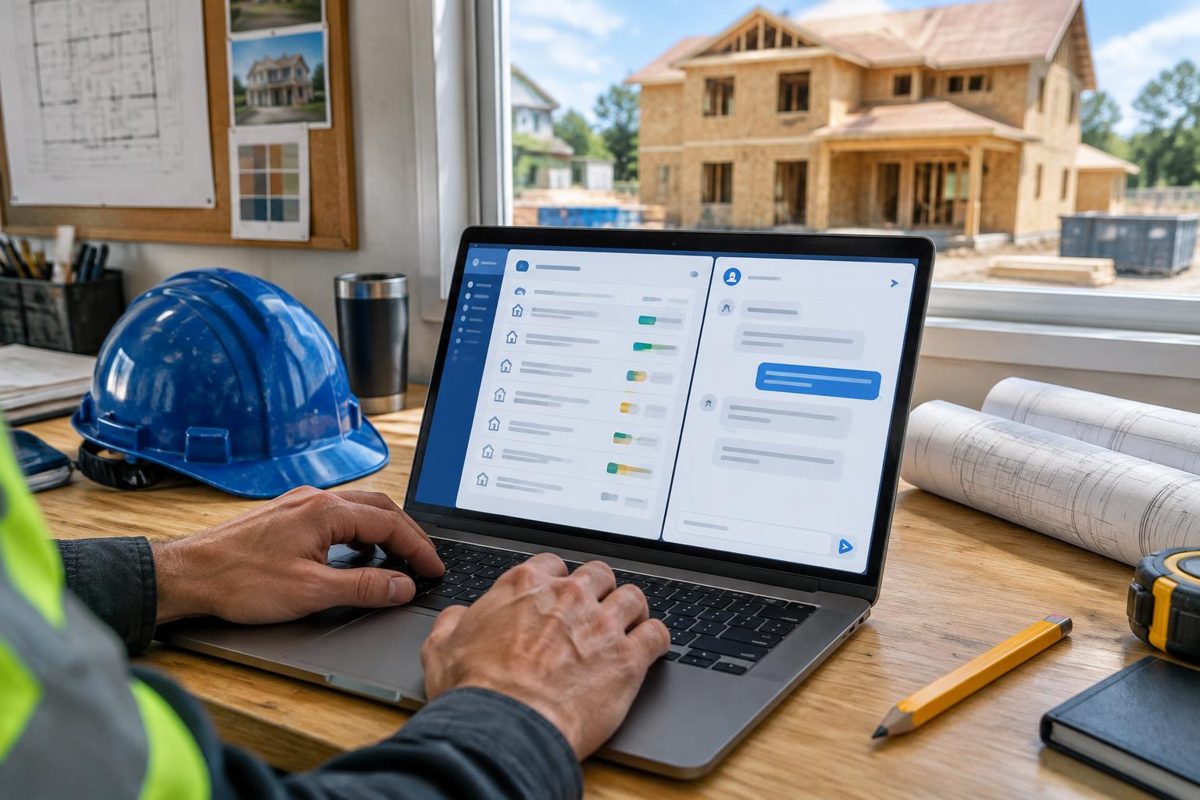
BuilderComs is building agent connections so contractors can bring their authorized job information into ChatGPT, Claude, Claude Code and other compatible MCP assistants. Jobs, tasks and conversations stay in BuilderComs; the external assistant uses the connection's tools to retrieve accessible records for your questions.
This is a separate part of BuilderComs from ordinary integrations, and it is separate from Hank, the assistant built into the software. The goal is to let you work with job context in the assistant you prefer rather than repeatedly copying information between tools.
Rollout is underway as the build is completed. Check Agent connections in your account for availability. This article describes the connection's intended read tools and setup location, not a guarantee that every account or assistant has access today.
What BuilderComs agent connections are
Agent connections use Model Context Protocol, or MCP. MCP gives AI applications a standard way to connect with external tools and information. A connection exposes particular capabilities; the protocol alone does not mean an assistant can access every record or perform every action. 1
For BuilderComs, the current connection tools are designed to read jobs, tasks and job conversations your account is authorized to access. That provides context for questions and drafts in a compatible external assistant.
Which assistants are covered?
BuilderComs connection instructions cover:
- ChatGPT: bring authorized job context into a supported MCP connection.
- Claude: use a compatible remote MCP connection to retrieve available BuilderComs information.
- Claude Code: access the exposed job tools through a compatible MCP setup.
- Other MCP assistants: use clients that support the connection's requirements.
Compatibility depends on the provider's features, your subscription and workspace permissions. OpenAI documents custom MCP connections and their authentication requirements; follow your provider's current instructions rather than assuming all free accounts support the same setup. 2
These are connection options, not endorsements or partnerships with the AI providers. Any external assistant subscription is separate from BuilderComs.
What a contractor could ask
Start with a specific job and a question that matches the available read tools. Example prompts include:
- “Show the tasks recorded for this job and separate completed tasks from open ones.”
- “Summarize the accessible conversation for this job and list questions that still need an answer.”
- “Using the retrieved job details, draft a progress update for me to review. Do not invent dates or commitments.”
A general contractor might use those prompts to prepare for a morning review. A roofer or remodeler might use them before a client call. These are illustrative uses, not a claim that a connected assistant can send an update or change a job for you.
Ask the assistant to identify missing information. If a due date or decision is not in the retrieved record, it should be treated as unknown rather than filled in with a guess. Verify the final answer against BuilderComs before acting on it.
Read tools are not automatic job changes
Do not assume an external agent can create jobs, complete tasks, edit schedules or send client messages. The current BuilderComs connection tools are designed for reading jobs, tasks and conversations.
An external assistant may write a proposed message in its own chat, but that does not mean it has sent the message through BuilderComs. Review and handle any action yourself unless the product explicitly provides and authorizes that action.
Where to find the settings
In the BuilderComs app, open Settings, then More settings, then Agent connections. Use the server address and the instructions for your chosen assistant from that page.
Sign-in and authorization are part of setup. Connections are designed to respect the jobs your account can access. Review what you authorize and check your external assistant's data policies before connecting business or client information.
If the connection option is not yet available in your account, contact BuilderComs about rollout access. Do not paste passwords or private access credentials into a general AI conversation.
How agent connections differ from Hank
Hank works inside BuilderComs and is included in every plan. You can talk or type to Hank about your jobs, and its built-in drafting workflow asks you to review and confirm before a draft is saved or sent.
Agent connections are for external assistants. They use their own accounts, provider requirements and the tools exposed by the connection. They do not replace Hank or inherit all of Hank's actions.
Use Hank when you want help inside BuilderComs. Explore an agent connection when you want accessible BuilderComs context in another assistant. Read why agent connections matter for contractors for practical examples and the limits to keep in mind.
A job record your tools can work from
The point of connecting an assistant is not to create another disconnected place for project decisions. Keep your team's tasks and conversations in BuilderComs, then use authorized access when another assistant needs that context.
Explore the Agent Connections page, compare BuilderComs plans or start a 7-day free trial. Hank is included in every plan; check the app's Agent connections settings for rollout availability and your assistant's connection requirements.